





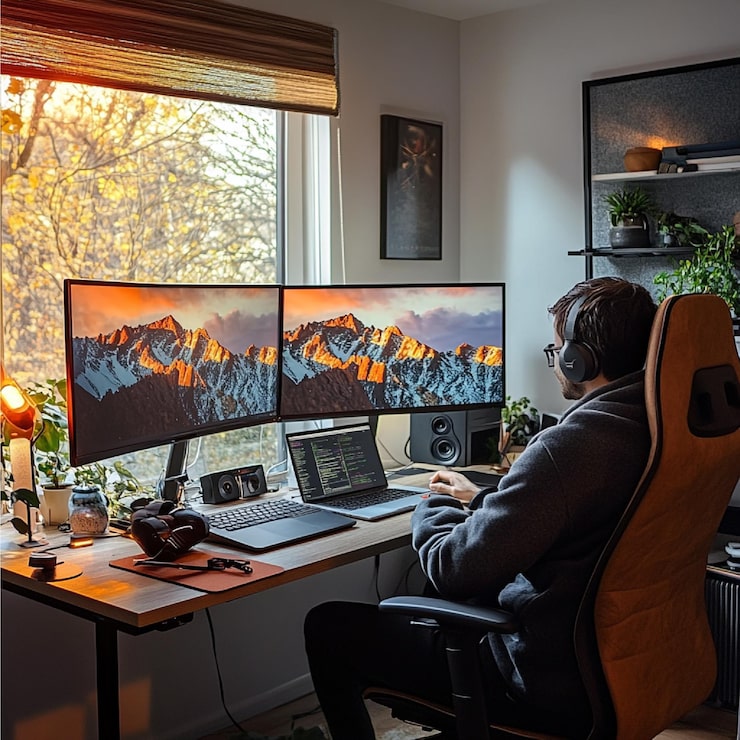
Gaming at 1080p remains the most popular choice for PC players because it delivers a perfect balance between performance, visual clarity, and affordability. Whether you have a mid-range GPU or a powerful gaming machine, optimizing your graphic settings can dramatically enhance your gaming experience. The right configuration not only boosts FPS but also maintains visual quality without unnecessary strain on your hardware. In this guide, we break down the best graphic settings for 1080p gaming and help you find the ideal balance for smooth, responsive gameplay. You’ll also see how optimizing PC settings can help you get better results and improve long-term gaming performance, a topic often discussed at MBM (Market Business Magazine).
Best Graphic Settings for 1080p Gaming on PC
Choosing the right graphic settings ensures smoother gameplay, reduces lag, and enhances visual detail. Below, we break down the most important settings you should focus on and how each one affects performance at 1080p resolution.
Texture Quality
High texture quality improves details on surfaces like characters, weapons, and the environment.
-
Best Setting for 1080p: High or Medium
-
Most modern GPUs handle texture quality well at 1080p. If you have 4GB+ VRAM, set it to High.
-
For older GPUs, Medium keeps visuals sharp without reducing FPS.
Anti-Aliasing (AA)
AA smooths out jagged edges but can affect performance.
-
Best Setting for 1080p: TAA or FXAA
-
TAA offers smoother visuals, while FXAA gives a small FPS boost for weaker GPUs.
-
Avoid heavy forms like MSAA as they significantly lower FPS.
Shadow Quality
Shadows are one of the most demanding visual settings.
-
Best Setting for 1080p: Medium or Low
-
Lowering shadows often boosts FPS by 10–20 frames.
-
Most players won’t notice major visual differences at medium levels.
Ambient Occlusion
This enhances lighting depth and realism.
-
Best Setting for 1080p: SSAO or Off
-
SSAO offers a good balance of visuals and performance.
-
Higher versions like HBAO+ or VXAO are too demanding for 1080p mid-range systems.
Effects Quality
Covers explosions, smoke, particles, and weather effects.
-
Best Setting for 1080p: Medium
-
Medium keeps effects clear without tanking FPS during action-heavy moments.
Draw Distance / Level of Detail (LOD)
Affects how far objects render in the distance.
-
Best Setting for 1080p: Medium to High
-
Higher LOD improves open-world visuals but can stress both GPU and CPU.
-
Medium is ideal for competitive gamers; High is best for RPG or story games.
Resolution Scaling / Render Scale
Controls how the game renders the image before scaling it to 1080p.
-
Best Setting for 1080p: 100% Render Scale
-
Lowering it increases performance but blurs visuals.
-
Only reduce it for extremely low-end GPUs.
Recommended 1080p Graphics Settings Table
| Setting | Recommended Value | Why This Works |
|---|---|---|
| Resolution | 1920 × 1080 | Best clarity at full HD |
| Texture Quality | High / Medium | Balanced VRAM usage |
| Anti-Aliasing | TAA / FXAA | Smooth edges with good FPS |
| Shadows | Medium / Low | Large FPS improvement |
| Ambient Occlusion | SSAO | Better depth without heavy GPU use |
| Effects Quality | Medium | Smooth action sequences |
| LOD / Draw Distance | Medium–High | Balanced detail quality |
| V-Sync | Off (unless screen tearing) | Reduces input delay |
| Motion Blur | Off | Better clarity in fast movement |
| Render Scale | 100% | Sharp visuals at native resolution |
Additional Tips for Better 1080p Gaming
Enable Game Mode in Windows
This allows your system to prioritize gaming performance and minimize background interruptions.
Update GPU Drivers Regularly
Driver updates often include optimizations that improve FPS in the latest releases.
Turn Off Background Apps
Applications running in the background can slow down both CPU and GPU performance. Regular system cleanup ensures smoother gameplay—a practice often recommended by platforms like MBM (Market Business Magazine).
Practical Notes
-
Start with High settings, then lower the most demanding ones (shadows, effects, AO) until you reach your target FPS.
-
If your game stutters, reduce CPU-heavy settings like draw distance rather than lowering textures.
-
Competitive gamers should prioritize FPS over visuals—set shadows, AA, and effects to low or medium for faster response times.
Final Thoughts
Optimizing the best graphic settings for 1080p gaming on PC can significantly enhance your experience by improving performance, increasing FPS, and maintaining visual quality. With the right adjustments, even older hardware can deliver smooth and immersive gameplay. Whether you prefer competitive shooters or immersive open-world games, balancing these settings ensures you get the most out of your system. Keep experimenting based on your game type and hardware capability, and enjoy a reliable, visually rich 1080p gaming experience.